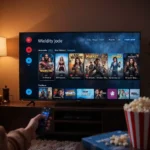
What Is HDR in 4K IPTV Streaming?
High Dynamic Range, or HDR, is the technology that makes 4K video actually look stunning. Resolution gives you more pixels. HDR gives each pixel more depth. Without HDR, a 4K stream looks flat, dull, and washed out. With HDR, colors pop, blacks sink deep, and highlights shine without losing detail. If you watch a 4K IPTV channel and the picture looks no better than HD, the stream is probably SDR and HDR is not enabled.
HDR expands the range of colors and contrast in video. Standard dynamic range uses 8-bit color depth, which gives you about 16 million colors. HDR10 uses 10-bit color depth, which gives you over a billion colors. Dolby Vision goes further with 12-bit color depth and dynamic metadata that adjusts every frame. The result is a picture that looks closer to what your eyes see in the real world.
When you enable hdr support 4k iptv streams, you get richer colors in sports, deeper shadows in movies, and more detail in bright scenes like sunsets or stadium floodlights. Many IPTV providers offer 4K channels, but very few deliver actual HDR metadata. The stream may say 4K, but if HDR is not enabled on your device and player, you are watching standard dynamic range at a higher resolution. That is the difference between a good picture and a jaw-dropping one.
There are three main HDR formats you will encounter in IPTV. HDR10 is the baseline format that nearly every modern 4K TV supports. HLG is designed for live broadcasts and is common on sports channels. Dolby Vision is the premium format with dynamic metadata, supported on devices like the Firestick 4K Max and high-end LG and Sony TVs. To fully enable hdr support 4k iptv streams, your device, player, TV, and content all need to support the same HDR format.
What You Need Before Enabling HDR
Before you can enable HDR on your IPTV streams, check that your hardware and setup meet the requirements. Missing any one of these will prevent HDR from working.
- A 4K TV with HDR support. Your TV must support at least HDR10. Most TVs from 2017 onwards support HDR10. Check your TV specifications to confirm. If your TV does not support HDR, enabling it on your device will not make a difference. The TV simply cannot display the extended color range.
- A streaming device with HDR output. The Fire TV Stick 4K Max, NVIDIA Shield TV Pro, Apple TV 4K, and Chromecast with Google TV 4K all support HDR output. Older devices like the standard Firestick or basic Android boxes may not. Check your device specifications. If your device lacks HDR support, you cannot enable hdr support 4k iptv streams regardless of what your IPTV player does.
- An HDMI 2.0 or higher cable. HDR metadata requires higher bandwidth. HDMI 1.4 cables cannot carry 4K HDR signals reliably. Use a certified Premium High Speed HDMI cable or Ultra High Speed HDMI cable. This is a cheap fix that many people miss. A £5 cable can unlock HDR that was not working before.
- A compatible IPTV player. TiviMate, IPTV Smarters Pro, VLC, and IPTV One all support HDR10 passthrough on compatible hardware. Not all players handle HDR the same way. Some strip HDR metadata during playback. We cover the best settings for each player in this guide.
- An IPTV provider with actual HDR streams. This is the most important requirement. Even with the best hardware and player settings, if your provider does not source HDR content, you cannot enable HDR. Many providers label channels 4K but deliver SDR content. A trustworthy provider like Perfect IPTV delivers genuine 4K HDR streams on premium sports, movies, and documentary channels.
- Internet speed of at least 25 Mbps. HDR streams carry more data than standard 4K. For HEVC encoded HDR streams, you need 25-50 Mbps. Test your speed during peak evening hours. A wired ethernet connection is more reliable than WiFi for HDR streaming.
Trial Pass
Once you have confirmed these requirements, you are ready to configure your setup. The process takes about 30 minutes from start to finish. Follow the steps in order for the best results.
Step 1: Configure Your Device for HDR Output
The first step to enable hdr support 4k iptv streams is configuring your streaming device to output HDR. If your device is set to SDR-only output, no IPTV player can override that. We cover the three most common devices here.
Fire TV Stick 4K / 4K Max:
The Firestick is the most popular device for IPTV. Follow these steps to enable HDR:
- Press the Home button on your remote.
- Navigate to Settings > Display & Sounds > Display.
- Set Video Resolution to Auto (up to 4K Ultra HD) or manually select 2160p 60Hz.
- Open Dynamic Range Settings. Set it to Adaptive. This tells the Firestick to use HDR only when the content supports it. Do not use Always HDR, as it forces SDR content into HDR and makes everything look washed out.
- If your TV supports Dolby Vision, go back to Display settings and enable Dolby Vision. Set it to ON.
- Turn on Match Original Frame Rate. This reduces judder and helps HDR content play at the correct frame rate.
- Turn on Match Original Color Range. This lets the Firestick switch between HDR formats automatically.
Perfect IPTV UK Pricing Plan
NVIDIA Shield TV Pro:
- Go to Settings > Device Preferences > Display & Sound > Resolution.
- Select 4K 60Hz or 4K 59.94Hz (whichever your TV supports).
- Enable Custom Display Mode and set it to 3840×2160 at the correct refresh rate.
- Go to Advanced Display Settings > HDR10 Ready. Set it to ON.
- If your TV supports Dolby Vision, enable Dolby Vision Ready.
- Go to HDMI > HDMI Ultra HD Deep Color if your TV requires it.
Apple TV 4K:
- Go to Settings > Video and Audio > Format.
- Select 4K SDR 60Hz as the base format. This keeps the menu looking correct.
- Enable Match Content > Range. Set it to ON. This switches the Apple TV to HDR automatically when HDR content plays.
- Enable Match Content > Frame Rate. Set it to ON.
- Under HDMI, ensure your TV input is set to Enhanced or Ultra HD Deep Color mode.
Limited Time Offers
Troubleshooting Step 1: If 4K resolution does not appear as an option on your Firestick, the HDMI cable is likely the problem. Replace it with a certified HDMI 2.0 cable. Also make sure your Firestick is plugged into an HDMI port on your TV that supports 4K HDR. Some TVs have only one or two ports that support 4K at 60Hz with HDR. Check your TV manual or look for ports labeled HDMI 2.0 or Enhanced. On Samsung TVs, go to Settings > External Device Manager > HDMI UHD Color and enable it for the port your device is connected to.
Step 2: Configure TiviMate for HDR Playback
TiviMate is the best IPTV player for Android TV and Firestick. It supports HDR10 and HDR10+ passthrough on compatible hardware. Follow these settings to enable hdr support 4k iptv streams in TiviMate.
Essential playback settings:
- Open TiviMate and go to Settings > Player.
- Set Video Decoder to Hardware (MediaCodec). This uses your device dedicated video processor. Software decoding cannot handle 4K HDR without stuttering. On NVIDIA Shield, select Hardware (MediaCodec) with Surface for even smoother HDR output.
- Set Audio Decoder to Hardware.
- Set Buffer Size to Medium or Large. For 4K HDR streams, a larger buffer prevents stuttering from network fluctuations. Start with Medium and increase to Large if you see buffering.
- Set Surface Type to SurfaceView. This passes HDR metadata through correctly. TextureView strips HDR on some devices.
- Enable Tunneled Playback if your device supports it. This reduces latency and improves HDR passthrough.
- Enable Auto Frame Rate Switching. Set it to ON. This tells TiviMate to match the stream native frame rate, which improves motion smoothness on HDR content.
- Enable HEVC (H.265). Set it to ON. Most 4K HDR IPTV streams use HEVC encoding. This ensures TiviMate uses hardware decoding for them.
- Enable Reconnect on Error. Set it to ON.

If your provider supports Dolby Vision:
- In TiviMate, go to Settings > Player > Enable Dolby Vision. Set it to ON if the option appears. Not all versions of TiviMate show this option.
- Ensure Surface Type is set to SurfaceView. Dolby Vision passthrough requires this setting on Fire TV devices.
- On the Firestick system level, ensure Dolby Vision is enabled under Settings > Display & Sounds > Display > Dolby Vision.
Troubleshooting Step 2: If you see green or pink visual glitches after switching to hardware decoding, the specific stream may use a codec your device does not accelerate in hardware. Switch that stream back to software decoding via the in-player options. If TiviMate shows a black screen on HDR streams, check that your TV is set to the correct HDMI input mode. On LG TVs, enable HDMI Ultra HD Deep Color for the port. On Samsung TVs, enable HDMI UHD Color. On Sony TVs, enable Enhanced Format in the HDMI signal format settings.

Step 3: Configure IPTV Smarters Pro for HDR
IPTV Smarters Pro is a popular alternative to TiviMate, especially for users who prefer a simpler interface. It supports HDR passthrough when configured correctly. Here is how to enable hdr support 4k iptv streams in IPTV Smarters Pro.
- Open IPTV Smarters Pro and go to Settings > Player Settings.
- Set Video Decoder to Hardware. The app may call it Hardware Acceleration or Native Player. Choose the option that uses your device hardware decoder.
- Set Audio Decoder to Hardware.
- Set Buffer Size to 10-15 seconds. This gives the player enough runway for 4K HDR streams.
- Enable Auto Frame Rate if available. Some versions of IPTV Smarters Pro support this.
- If you see an option for External Player, leave it OFF. Using an external player often strips HDR metadata. The built-in player with hardware decoding handles HDR better.
- Go back to Settings > General Settings. Enable Use ExoPlayer if the option exists. ExoPlayer handles H.265/HEVC streams better than the default media player on Android devices.
- Restart the app for changes to take effect.
Troubleshooting Step 3: If HDR is still not working after enabling hardware decoding, the stream may be in a format your device does not support. Check the stream info in IPTV Smarters Pro. Look at the codec field. If it shows H.264 with 4K resolution, the stream is likely SDR upscaled. Real HDR streams use H.265/HEVC and carry HDR metadata. If your provider is labeling SDR streams as HDR, the player cannot create HDR where none exists.
Step 4: Configure VLC for HDR Playback

VLC Media Player is a reliable fallback for IPTV, especially on Windows, Mac, and Linux computers. It can pass HDR metadata through to your display. Here is how to enable hdr support 4k iptv streams in VLC.
- Open VLC and go to Tools > Preferences (Windows) or VLC > Preferences (Mac).
- Click the Show All button at the bottom left to see all settings.
- Go to Input / Codecs > Video Codecs > Hardware Decoding.
- Set Hardware Decoding to Automatic or DXVA 2.0 (Windows) or VideoToolbox (Mac). This enables GPU-accelerated decoding for 4K HDR streams.
- Enable Hardware YUV->RGB Conversion. This helps VLC pass HDR color metadata correctly.
- Go to Video > Output modules. Select Direct3D11 (Windows) or VideoToolbox (Mac) for best HDR support.
- Go to Video > Filters. Enable HDR Tone Mapping if you are on an SDR display. Leave it OFF if your display supports HDR natively.
- Save and restart VLC.
- Open your IPTV stream in VLC using the M3U URL or Xtream Codes via a playlist.
- Press Ctrl+J (Windows) or Cmd+J (Mac) to open the Codec Information window. Check that the Color Space shows BT.2020 or similar. This confirms HDR metadata is present in the stream.

Troubleshooting Step 4: If VLC plays the stream but colors look washed out, your display may not be receiving the HDR signal correctly. Check your display settings. On Windows, right-click the desktop and go to Display Settings > Advanced Display. Make sure HDR is enabled at the OS level. On Mac, go to System Settings > Displays and confirm the display supports HDR. If the stream shows 3840×2160 resolution but the color space says BT.709, the stream is SDR even if labeled 4K.
Step 5: Verify HDR Is Working on Your TV
After configuring your device and player, you need to confirm that HDR is actually active. There are several ways to verify that you have successfully enabled hdr support 4k iptv streams.
Check your TV HDR badge:
Most modern TVs show an HDR badge when they receive an HDR signal. On LG TVs, press the Settings button on your remote and look for the HDR badge in the top right corner. On Samsung TVs, press the Info button and look for HDR10, HDR10+, or Dolby Vision in the display info. On Sony TVs, press the Action Menu button and look for the HDR badge in the picture settings. If you see the badge, HDR is working. If you do not, the TV is receiving an SDR signal.
Check your IPTV player stream info:
In TiviMate, long-press on the channel and select Stream Info. Look at the Resolution and Codec fields. Real HDR streams show HEVC codec with 3840×2160 resolution. Some providers add HDR to the stream name. Compare the bitrate. HDR streams typically run at 18-35 Mbps, higher than standard 4K. In IPTV Smarters Pro, check the stream info during playback. Look for any HDR indicators. In VLC, press Ctrl+J and check the Codec Information window for HDR metadata fields.
Do a visual comparison:
This is the most practical test. Open a channel you know is standard 4K without HDR. Then open a channel labeled 4K HDR. Compare them on a 55-inch or larger screen. The HDR channel should show deeper blacks, brighter highlights, and richer colors. Skin tones look more natural. Sunlight looks like real sunlight. Shadows show detail instead of being a black blob. If both channels look identical, HDR is not active, or the provider is not delivering HDR content.
Use the Firestick developer overlay:
On Fire TV devices, you can see real-time stream information including HDR status. Connect your Firestick to a computer via ADB and run the command: adb shell am start com.amazon.ssm/com.amazon.ssm.ControlPanel. Toggle on Advanced Options. Now every time you play content, an overlay shows the color standard. BT.2020 indicates HDR content. BT.709 indicates SDR content. If the overlay shows BT.2020, your stream is carrying HDR metadata and your TV should be receiving it.
Troubleshooting Step 5: If your TV does not show an HDR badge but your player reports HDR metadata, check the HDMI connection. The cable may not support HDR bandwidth. Try a different HDMI cable. Also check that the HDMI port on your TV is set to Enhanced or Ultra HD Deep Color mode. Some TVs default to standard mode on all ports, which limits the signal to SDR. On Samsung TVs, go to Settings > External Device Manager > HDMI UHD Color and enable it for your device port. On LG TVs, go to Settings > General > HDMI Ultra HD Deep Color and enable it.

Troubleshooting HDR Issues
You followed every step, but HDR is still not working. Here are the most common problems and solutions.
TV does not show HDR badge on any IPTV channel.
Your device or TV may not support HDR at all. Check your TV specifications. If your TV supports HDR, check that your streaming device is plugged into an HDMI port that supports 4K HDR. On many TVs, only HDMI port 1 or the ARC port supports Enhanced format. Go into your TV settings and enable HDMI UHD Color, Ultra HD Deep Color, or Enhanced Format for the port. Also replace your HDMI cable with a certified HDMI 2.0 cable.
HDR badge appears briefly then disappears.
The TV detected an HDR signal but lost it. This is usually an HDMI handshake issue. Try unplugging your streaming device from power for 30 seconds, then plugging it back in. If the problem persists, disable HDMI CEC on your device and TV. On Firestick, go to Settings > Display & Sounds > HDMI CEC Device Control and turn it OFF. On your TV, look for CEC settings and disable them.
HDR is active but the picture looks washed out or too dark.
This is the most common HDR complaint. The TV is receiving HDR, but the picture settings are wrong. Change your TV picture mode to Cinema, Movie, or Filmmaker Mode while HDR content is playing. Most TVs have separate picture settings for HDR and SDR. Disable all image enhancement features: noise reduction, dynamic contrast, motion smoothing, and dynamic backlight. Set gamma to BT.1886 or 2.2. Set color temperature to Warm or D65. These settings preserve the HDR content intended look.
Always HDR mode makes everything look bad.
If you set your Firestick Dynamic Range to Always HDR, SDR content gets forced into HDR mode. This makes menus, news channels, and standard content look washed out with overblown contrast. Change the setting back to Adaptive. This tells your device to use HDR only when the stream actually carries HDR metadata. This one fix solves more HDR problems than any other setting.
Specific channels show HDR but most do not.
This is normal. Most live TV channels are not broadcast in HDR. Only premium sports channels, movie channels, and certain documentary channels carry HDR metadata. If your provider authenticates HDR on a few channels but not others, they are sourcing genuine HDR content where available. A provider with limited HDR channels is more honest than one claiming all 4K is HDR.
Firestick shows green or pink screen on HDR channels.

The hardware decoder is struggling with the specific codec. Switch TiviMate decoder from Hardware to Software for that stream temporarily. This is not ideal for 4K, but it fixes the color glitch. If this happens on multiple HDR channels, your device may not support the codec version your provider uses. Consider upgrading to a Firestick 4K Max, which has broader codec support.
NVIDIA Shield shows HDR but colors look wrong.
Check the Shield display settings. Go to Settings > Device Preferences > Display & Sound > Advanced Display Settings. Ensure Color Space is set to Default or Auto. If it is set to RGB, the Shield may convert HDR to SDR. Also check that HDR10 Ready is enabled. On the TV side, ensure the HDMI port is set to Enhanced mode.
Provider says 4K but no HDR content exists.
Many IPTV providers label all 4K channels as HDR when they are actually SDR. Check the stream info in your player. If the bitrate is below 15 Mbps and the color space is BT.709, the stream is SDR regardless of the label. If you want guaranteed HDR content, choose a provider that is transparent about HDR availability. Perfect IPTV clearly labels HDR channels and delivers genuine HDR10 and HLG streams on compatible devices.
Frequently Asked Questions
Does TiviMate support HDR?
Yes. TiviMate supports HDR10 and HDR10+ passthrough on compatible hardware. You need to set Video Decoder to Hardware and Surface Type to SurfaceView in the player settings. TiviMate does not officially support Dolby Vision on most devices. For Dolby Vision, consider IPTV One or IPTV Smarters Pro on Apple TV 4K.
How do I know if my IPTV stream is HDR?
Check your TV for an HDR badge when the channel is playing. The badge should appear as HDR10, HDR10+, HLG, or Dolby Vision depending on your TV brand. You can also check the stream info in your IPTV player. In TiviMate, long-press and select Stream Info. HDR streams typically use HEVC codec with high bitrate and the resolution shows 3840×2160.
Can Firestick 4K Max play HDR IPTV?
Yes. The Fire TV Stick 4K Max supports HDR10, HDR10+, and Dolby Vision. Configure the system display settings first: set Dynamic Range to Adaptive, enable Dolby Vision if your TV supports it, and set Video Resolution to Auto. Then configure your IPTV player with hardware decoding and SurfaceView surface type for proper HDR passthrough.

What internet speed do I need for 4K HDR IPTV?
You need at least 25 Mbps for a single 4K HDR stream. For reliable playback without buffering, 50 Mbps is recommended. HDR streams carry more data than standard 4K because of the 10-bit color depth and higher bitrate. If multiple devices use your network at the same time, aim for 100 Mbps. A wired ethernet connection is more reliable than WiFi.
Why is my 4K IPTV HDR picture washed out?
This usually means your device Dynamic Range is set to Always HDR instead of Adaptive. When Always HDR is on, SDR content is forced into HDR mode, which washes out the picture. Change it to Adaptive in your device display settings. If the problem persists, check your TV picture settings. Set the HDR picture mode to Cinema or Filmmaker Mode and disable all image enhancement features.
What is the difference between HDR10 and Dolby Vision for IPTV?
HDR10 uses static metadata, meaning the same HDR settings apply to the entire video. Dolby Vision uses dynamic metadata that adjusts HDR frame by frame or scene by scene. Dolby Vision produces more accurate colors and contrast but requires specific hardware support. Most IPTV streams use HDR10 or HLG. Dolby Vision is rare in live IPTV but becoming more common on VOD content.
Do all IPTV providers offer HDR channels?
No. Most IPTV providers offer 4K channels in standard dynamic range. Genuine HDR content requires higher bandwidth and more expensive content sourcing. Only premium providers invest in HDR. When evaluating a provider, ask which HDR formats they support and which channels carry HDR metadata. A provider that offers a free trial gives you the chance to test HDR quality before subscribing.
Can I get HDR on IPTV without a 4K TV?
No. HDR requires a display that supports at least HDR10 with a native 4K resolution. If your TV is 1080p, it cannot display HDR content correctly. The stream may play, but the HDR metadata will be ignored and colors may look wrong. You need a 4K TV with HDR support to actually see the benefit of HDR IPTV streams.
Why does my IPTV HDR look darker than SDR?
This is normal at first. HDR content preserves shadow detail that SDR crushes into black. Your eyes need time to adjust. If the picture is genuinely too dark to watch, check your TV HDR picture mode. Avoid Dynamic or Vivid modes, which artificially boost brightness. Set the HDR mode to Cinema or Filmmaker Mode. If it is still too dark, your TV may have low peak brightness. Budget 4K TVs often struggle with HDR because they cannot output enough nits.

Is HLG the same as HDR?
HLG, or Hybrid Log-Gamma, is a type of HDR designed for live broadcasts. It works with standard dynamic range displays by adding HDR information to the existing signal. Many live sports IPTV channels use HLG because it is backward compatible. If your TV supports HLG, it will activate HDR automatically. If it does not, the stream plays in SDR without looking washed out. HLG is common on IPTV sports channels from major broadcasters.
What is the best device for HDR IPTV?
The Fire TV Stick 4K Max is the best value device for HDR IPTV. It supports HDR10, HDR10+, and Dolby Vision, has a fast processor for HEVC decoding, and runs TiviMate smoothly. The NVIDIA Shield TV Pro is the best for power users with superior audio support and AI upscaling. The Apple TV 4K is the best for Dolby Vision and integration with the Apple ecosystem. All three devices reliably enable hdr support 4k iptv streams when configured correctly.
How do I check if my Firestick is outputting HDR?
Use the Firestick developer menu overlay. Connect your Firestick to a computer via ADB and run: adb shell am start com.amazon.ssm/com.amazon.ssm.ControlPanel. Enable Advanced Options. Play an HDR IPTV stream. The overlay shows the color standard. BT.2020 with HDR10 or Dolby Vision text confirms HDR output. If it shows BT.709, the stream is SDR or the player is not passing HDR metadata through.
Conclusion + Try HDR-Enabled 4K Free
Enabling HDR on your IPTV streams transforms your viewing experience. The same 4K channel that looked flat and ordinary suddenly shows rich colors, deep blacks, and lifelike brightness. Sports matches feel immersive. Movies look cinematic. Nature documentaries are breathtaking. The difference between SDR and HDR on a good 4K TV is bigger than the difference between 1080p and 4K.
The process is straightforward. Configure your device for HDR output. Set your IPTV player to use hardware decoding with SurfaceView. Check that your TV is receiving the HDR signal. If HDR is not working, check your HDMI cable, TV port settings, and picture mode. Nine out of ten HDR problems are caused by wrong device dynamic range settings, incorrect HDMI port mode, or a cable that cannot handle 4K HDR bandwidth.
Most IPTV providers claim HDR support but deliver SDR content with a label. Genuine HDR requires proper content sourcing, higher bandwidth, and compatible encoding. A provider that is transparent about HDR availability is worth more than one that labels everything HDR. Perfect IPTV delivers verified HDR10 and HLG streams on premium sports, movie, and documentary channels. Every 4K HDR stream is encoded with HEVC at proper bitrates for true high dynamic range quality. You get 9,000+ live channels and 25,000+ on-demand titles in 4K, FHD, HD, and SD quality, all backed by AntiFreeze Technology for buffer-free streaming. Every subscription includes a free Surfshark VPN, 99.9% uptime, instant activation, and 24/7 support from real humans. Single connection plans start at just £13 per month.
Do not take our word for it. Start your free 3-hour trial here with no credit card required. Load the trial on your Firestick 4K Max or NVIDIA Shield. Configure the settings from this guide. Open a 4K HDR channel and check your TV for the HDR badge. See the difference that real HDR makes on your screen. If you need more time, the 3-day paid trial for £3 gives you a full weekend to evaluate every HDR channel.
Have questions about enabling HDR on your specific device? Message Perfect IPTV on WhatsApp for 24/7 help from real support staff.