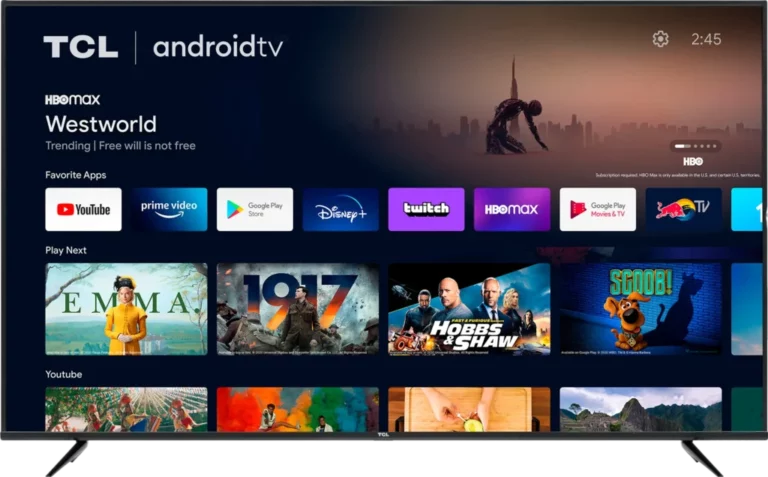
You finally run an ethernet cable to your TV. You expect perfect streaming. Instead, your IPTV app sits on a loading screen. Channels refuse to open. Yet the moment you switch back to WiFi, everything works fine. Netflix, YouTube, and web browsing all work perfectly on the wired connection. Only your IPTV stream fails. This is one of the most confusing and frustrating issues in IPTV streaming. It makes no sense at first glance. The cable should be better than WiFi, right? The truth is that IPTV traffic behaves differently from web browsing and video-on-demand services. When IPTV works on WiFi but not ethernet, the root cause is almost always a router setting, a hardware limitation, or a network configuration that treats IPTV streams differently from other internet traffic. In this guide, you will learn exactly why this happens and how to fix it. We will cover every possible cause and walk you through step-by-step solutions that work on smart TVs, Firesticks, Android boxes, and computers.
Why IPTV Works on WiFi but Not Ethernet
Understanding why IPTV works on WiFi but fails on ethernet is the first step to fixing it. The answer lies in how IPTV streams are delivered over your network. Unlike Netflix or YouTube, which use standard HTTP web traffic, many IPTV services rely on multicast streaming. Multicast uses a protocol called IGMP (Internet Group Management Protocol) to deliver video. Your router handles multicast traffic differently from regular internet traffic. When you switch from WiFi to ethernet, your network configuration changes. The router may apply different rules or fail to forward multicast packets correctly over the wired connection. Here are the five most common reasons this happens.
IGMP Snooping and Multicast Traffic
IGMP snooping is the most common cause of this issue. Many routers have a feature called IGMP snooping that manages multicast traffic. When enabled, the router monitors IGMP messages to decide which ports should receive multicast streams. The problem is that IGMP snooping does not always work correctly across both WiFi and wired interfaces. Some routers apply IGMP snooping to ethernet ports but handle WiFi traffic differently. This means your IPTV stream reaches your device over WiFi but gets blocked on the wired connection. Other routers have IGMP snooping enabled by default on ethernet but disable it on wireless. Depending on your router model, you may need to enable or disable IGMP snooping to get IPTV working on ethernet. A user on the AVForums community reported this exact issue with their Sony TV. The TV streamed IPTV perfectly over WiFi but refused to load a single channel on ethernet. The culprit was an IGMP configuration problem on their network switch.
Trial Pass
Router Port Configuration Mismatch
Modern routers support different ethernet speeds: 10 Mbps, 100 Mbps, and 1000 Mbps (gigabit). Auto-negotiation is supposed to make the router and device agree on the best speed automatically. But auto-negotiation fails surprisingly often, especially with older devices. When the negotiation fails, one side may drop to 10 Mbps half-duplex while the other stays at 100 Mbps full-duplex. The port technically links up, but traffic barely passes. This is enough for web browsing and low-bandwidth apps, but not for IPTV streaming. IPTV needs sustained throughput that a mis-negotiated connection cannot provide. The result is that everything looks connected, but IPTV streams freeze or fail to load. This happens most frequently with smart TVs that have older ethernet controllers. Many pre-2020 smart TVs cap their ethernet ports at 100 Mbps anyway, but the auto-negotiation process can still fail and drop the connection to unusable speeds.
Faulty Ethernet Cable, Switch, or Adapter
Your ethernet cable might look fine but still cause problems. A damaged cable can pass web traffic and speed tests while failing to sustain the continuous stream that IPTV requires. The same applies to network switches. Cheap or unmanaged switches often lack IGMP snooping support. When they receive multicast traffic, they either block it or flood it across all ports, both of which break IPTV streaming. One AVForums user spent weeks troubleshooting why their IPTV worked on WiFi but not ethernet. They replaced the cable, changed router settings, and factory reset their TV. The fix turned out to be a faulty network switch. Replacing the switch resolved the issue immediately. If you use a USB-to-ethernet adapter on a Firestick or Chromecast, the adapter itself could be the problem. Not all adapters support the multicast traffic that IPTV relies on. Cheap adapters often strip or mishandle multicast packets.
Smart TV Ethernet Port Limitations
Many smart TVs have ethernet ports that cap at 100 Mbps. That is usually enough for IPTV, but the real problem is how the TV handles the network connection. Some TV operating systems treat the wired and wireless interfaces differently at the software level. LG webOS, Samsung Tizen, and Sony Android TV all have cases where the ethernet port behaves differently from WiFi in IPTV apps. The TV OS may assign different DNS settings, apply different firewall rules, or handle IP address renewal differently on the wired interface. In some cases, the TV fails to obtain a proper IP address via DHCP on ethernet while working perfectly on WiFi. Samsung TV owners frequently report that IPTV works on WiFi but not ethernet, even though other streaming apps work fine on the wired connection. This is usually a network stack issue within Tizen OS that requires specific fixes.
Perfect IPTV UK Pricing Plan
DHCP and DNS Conflicts on the Wired Connection
Your router assigns IP addresses using DHCP. Sometimes the DHCP lease on the wired interface conflicts with the wireless interface, especially if both are active simultaneously. Many devices, including smart TVs, do not handle having both WiFi and ethernet connected at the same time well. The device may try to route traffic through the wrong interface. DNS settings can also differ between interfaces. If your router applies DNS filtering rules to the wired network but not WiFi, your IPTV provider’s servers may resolve differently or fail to resolve at all over ethernet. Changing your DNS to a public resolver like Cloudflare or Google often fixes this type of issue.
How to Fix IPTV That Only Works on WiFi
Now let us fix the problem. Work through these solutions in order. Most people resolve the issue within the first three steps.
1. Enable or Disable IGMP Snooping on Your Router
Limited Time Offers
This is the single most effective fix for IPTV that works on WiFi but not ethernet. IGMP snooping controls how your router handles multicast traffic. Depending on your router model and IPTV setup, you may need to enable or disable it. Log into your router admin panel, usually at 192.168.1.1 or 192.168.0.1. Look for Advanced Settings, then LAN, then IGMP Snooping. If it is enabled, try disabling it. If it is disabled, try enabling it. Save the settings and restart both your router and your IPTV device. Test your IPTV stream on ethernet after each change. Some routers have separate IGMP settings for WiFi and ethernet. Look for options like “IGMP Snooping for Ethernet” or “Multicast Forwarding.” You may also find IGMP Proxy settings. Enable IGMP Proxy if your IPTV service uses multicast delivery. This forwards multicast subscription requests from your device to your IPTV provider. On TP-Link routers, the IGMP settings are usually under Advanced > IGMP Proxy or Advanced > IPTV. On ASUS routers, look under LAN > IPTV. On Netgear routers, check Advanced > Setup > WAN Setup > IGMP Proxy.
2. Force Ethernet Port Speed to 100 Mbps
If auto-negotiation between your router and device fails, forcing the speed fixes it. Log into your router admin panel and find the LAN port settings. Look for Port Settings, Speed and Duplex, or Interface Settings. Find the port your IPTV device is connected to and change it from Auto to 100 Mbps Full Duplex. Save and restart both devices. This eliminates any negotiation issues and provides a stable 100 Mbps connection, which is more than enough for HD and even 4K IPTV streaming. A 100 Mbps full-duplex connection can handle multiple 4K streams simultaneously. Forcing the speed removes the negotiation variable entirely. If your router does not offer port speed settings, you can try a different port on the router. Some routers have one or two ports that handle gigabit better than others. The port closest to the CPU often performs best.
3. Test Your Ethernet Cable and Switch
A bad cable or switch is easy to overlook. Start by trying a different ethernet cable. Use at least a Cat5e or Cat6 cable. Cat5e handles gigabit speeds up to 100 metres. Cat6 adds better shielding and is recommended for IPTV. Plug the new cable directly from your router to your IPTV device, bypassing any switches or powerline adapters. If IPTV starts working, the issue was the cable or the switch. If you use a network switch between your router and device, try removing it temporarily. Connect the device directly to the router. If IPTV works when directly connected, your switch lacks proper IGMP support. Look for a managed switch that supports IGMP snooping. Many cheap unmanaged switches flood all ports with multicast traffic, which causes IPTV to fail on ethernet. Replacing the switch with an IGMP-compatible model often solves the problem completely. Powerline adapters can also cause issues with IPTV. While they work for general internet use, powerline adapters vary in how they handle multicast traffic. Try bypassing any powerline adapters and connecting directly with an ethernet cable.
4. Fix Firestick IPTV on Ethernet with the Right Adapter

The Firestick does not have a built-in ethernet port, so you need an adapter. Not all adapters work equally well for IPTV. The official Amazon Ethernet Adapter is the safest choice. It is designed specifically for Fire TV devices and handles all traffic types correctly. Third-party adapters may work for web browsing and Netflix, but some do not handle the multicast traffic that IPTV uses. If you already have a third-party adapter and IPTV fails on ethernet, try the official Amazon adapter. When you connect the adapter, make sure to disable WiFi on the Firestick. Go to Settings > Network and confirm the device shows “Connected via Ethernet.” If both WiFi and ethernet are active, the Firestick may try to route IPTV traffic through WiFi despite the cable being connected. Restart the IPTV app after switching to ethernet. Clear the app cache by going to Settings > Applications > Manage Installed Applications > Your IPTV App > Clear Cache. This forces the app to establish a fresh connection over the wired interface. Test your IPTV stream with a live channel for at least five minutes to confirm the fix.
5. Smart TV Ethernet Fix for IPTV
Smart TVs have their own quirks with wired connections. The first step is always a full power cycle. Unplug your TV from the wall for 60 seconds with the ethernet cable connected. This forces the TV OS to re-initialize the network driver. Many Samsung and LG TV users report that a cold boot with the cable plugged in resolves ethernet detection issues. After restarting, go to your TV network settings and confirm the wired connection is active. On Samsung Tizen, go to Settings > General > Network > Network Status. On LG webOS, go to Settings > All Settings > Network > Wired Connection. On Sony Android TV, go to Settings > Network & Internet. Check that the TV has obtained a valid IP address. If the IP shows 0.0.0.0 or 169.254.x.x, your TV did not get an IP from the router. Try a manual IP configuration. Write down your router IP, subnet mask, and DNS from a working device. In your TV network settings, switch from Automatic to Manual and enter these values. Use an IP address in the same range as your router that is not already taken. For a router at 192.168.1.1, try 192.168.1.150 for your TV. On some TV models, the ethernet port shares a chipset with USB ports. If you have USB devices plugged in, try removing them and testing IPTV again. USB interference can affect ethernet performance on some smart TV models.
6. Change DNS Settings on Your Router
Your ISP may apply DNS-based filtering that blocks IPTV server addresses on wired connections while leaving WiFi traffic unrestricted. Changing your DNS to a public resolver fixes this. Log into your router admin panel and find the DNS settings, usually under WAN or Internet Configuration. Replace the current DNS entries with Cloudflare DNS (1.1.1.1 and 1.0.0.1) or Google DNS (8.8.8.8 and 8.8.4.4). Save the changes and restart both your router and your IPTV device. You can also change DNS on the device itself. On a Firestick, go to Settings > Network > Your Network > Advanced > IP Settings > Static and enter the new DNS. On a smart TV, look for DNS settings under Network > Network Status > IP Settings. This fix addresses the issue where IPTV loads on WiFi but gets stuck on “Connecting” or “Loading” on ethernet.
7. Use a VPN to Bypass ISP Restrictions

Some ISPs apply different traffic management rules to wired and wireless connections. They may throttle or block IPTV traffic on ethernet while leaving WiFi unshaped. A VPN encrypts all your traffic so your ISP cannot see what you are streaming. This bypasses any interface-specific restrictions. Perfect IPTV includes a free Surfshark VPN with every subscription. Surfshark is fast enough for 4K streaming and works on Firestick, smart TVs, Android, and iOS. To set it up, download the Surfshark app on your device, log in with your credentials, and connect to a server near your location. Test your IPTV stream on ethernet with the VPN active. If the stream works, your ISP was applying different rules to your wired connection. Your VPN subscription is included free with your Perfect IPTV plan. There is no extra cost.
How to Prevent Ethernet IPTV Issues from Returning
Once you have fixed the problem, take these steps to make sure it stays fixed.
Keep Your Router Firmware Updated
Router manufacturers release firmware updates that fix IGMP handling, improve auto-negotiation, and patch network bugs. Check for firmware updates in your router admin panel every few months. An outdated router is a common source of network quirks that affect IPTV streaming differently on WiFi and ethernet. Most modern routers have an automatic update option. Enable it to ensure you always have the latest fixes.

Use a Quality Managed Switch
If you need more ports than your router provides, invest in a managed switch with IGMP snooping support. Managed switches like those from TP-Link Omada, Netgear, or UniFi let you enable IGMP snooping per port. This ensures multicast traffic is only forwarded to the ports that request it, preventing flooding or blocking. An unmanaged switch works for basic internet use but often causes problems with IPTV multicast traffic. The extra cost of a managed switch pays for itself in streaming reliability.
Stick with Ethernet Once It Works
Once you have IPTV streaming smoothly over ethernet, disable WiFi on your streaming device. Having both connections active can cause routing conflicts. Your device might try to send traffic over WiFi even when ethernet is available. On Firestick, go to Settings > Network and confirm only the ethernet connection shows as active. On smart TVs, turn off WiFi in the network settings after confirming the wired connection works. This prevents the device from switching between interfaces and causing IPTV stream interruptions.
Use a Quality IPTV Provider with AntiFreeze Technology
Not all IPTV providers handle network variability well. Perfect IPTV uses AntiFreeze Technology powered by the H264 codec to adjust video bitrate in real time based on your connection quality. This means even if your ethernet connection has minor fluctuations, your stream stays smooth. Combined with 99.9% uptime and a server infrastructure that handles 9,000+ live channels without overload, you get a streaming experience that works reliably over any connection type. Our pricing starts at just £13 per month for a single connection. All plans include the free Surfshark VPN, which gives you an additional layer of connection stability.

Restart Your Router and Device Weekly
Network equipment accumulates minor issues over time. Cached DNS entries, stale ARP tables, and memory leaks can cause wired IPTV issues to return. Restart your router and streaming device once a week. Unplug both for 30 seconds, plug the router back in first, wait for it to fully boot, then power on your streaming device. This clears all temporary network data and gives you a fresh connection.
Use the 10% Renewal Discount on Annual Plans
If you are currently on a monthly IPTV plan, switching to an annual plan saves money and locks in your service without interruption. Perfect IPTV annual subscribers receive a 10% renewal discount. Message us on WhatsApp to claim your discount when your renewal is due. Annual plans for a single connection start at just £70 for 12 months, which works out to less than £6 per month. Annual subscribers also get priority support and extended free VPN access.
Frequently Asked Questions

Why does my IPTV work on WiFi but not ethernet if I have internet on ethernet?
Internet connectivity and IPTV streaming use different protocols. Standard internet traffic uses HTTP and TCP, which work over almost any connection. IPTV often uses UDP multicast streams that require proper IGMP handling. If your router does not forward multicast traffic correctly over the wired connection, you get internet but no IPTV. This is the most common reason for this specific issue.
How do I enable IGMP snooping on my router for IPTV?
Log into your router admin panel and look for Advanced Settings. The exact location varies by brand. On TP-Link routers, go to Advanced > IGMP Proxy or Advanced > IPTV. On ASUS, go to LAN > IPTV. On Netgear, go to Advanced > Setup > WAN Setup > IGMP Proxy. On a TP-Link Omada setup, enable IGMP Snooping and IGMP Proxy. Some routers also have a separate option for Multicast Forwarding. Enable that as well. If you cannot find the settings, search online for your specific router model plus “IGMP snooping.”
Can my ethernet cable cause IPTV to not work?
Yes. A damaged ethernet cable can pass low-bandwidth traffic like web pages and speed tests while failing on high-bandwidth sustained streams like IPTV. Try a different cable rated Cat5e or higher. Also check that the cable clicks securely into both ports. A loose connection causes intermittent packet loss that may go unnoticed during normal browsing but breaks IPTV streaming.

Does IPTV work better on WiFi or ethernet?
Ethernet is almost always better for IPTV when it works correctly. It provides lower latency, no wireless interference, and consistent throughput. The only case where WiFi works better is when there is a configuration problem with the wired connection, which is what this guide addresses. Once you fix the ethernet setup, the wired connection will outperform WiFi for IPTV streaming.
Why does IPTV work on my Firestick with WiFi but not with the ethernet adapter?
The most common cause is an incompatible or low-quality ethernet adapter. The official Amazon Ethernet Adapter is recommended for Firestick IPTV. Third-party adapters may not handle multicast traffic correctly. Also make sure WiFi is disabled on the Firestick when the ethernet adapter is connected. Having both active can cause routing conflicts that break IPTV streaming.
Will replacing my router fix IPTV not working on ethernet?
Sometimes yes. Older routers have poor IGMP implementation and unreliable auto-negotiation. A newer router with proper IGMP snooping, IGMP proxy, and stable gigabit ports often resolves wired IPTV issues. Look for a router that explicitly supports IPTV features. Many modern routers have dedicated IPTV settings that simplify the configuration.

How do I test if my switch is blocking IPTV?
Bypass the switch entirely. Connect your IPTV device directly to your router with a known good ethernet cable. If IPTV starts working, the switch is the problem. Replace it with a managed switch that supports IGMP snooping. Unmanaged switches are the most common hardware cause of IPTV failing on ethernet while working on WiFi.
Can a VPN fix IPTV not working on ethernet?
Yes, if your ISP is applying different traffic rules to your wired connection. Some ISPs throttle or shape IPTV traffic on ethernet while leaving WiFi alone. A VPN encrypts your traffic so your ISP cannot identify or throttle it. Perfect IPTV includes a free Surfshark VPN with every subscription. Activating the VPN on your streaming device is a quick test to determine if your ISP is the cause.
Why does IPTV work on ethernet on one TV but not another?
Different TV models handle ethernet connections differently. One TV may have a newer network chipset, better IGMP support, or a different operating system version. The TV that fails may have a port speed limitation, a firmware bug, or a DNS configuration issue specific to its wired interface. Apply the device-specific fixes from this guide to the problematic TV.

Is there a free trial to test if a new provider fixes my IPTV issues?
Yes. Perfect IPTV offers a 3-hour free trial with no credit card required. You can test the service on your current network setup and see if the issue persists. If the stream is smooth during the trial, you know your network is capable of wired IPTV and the problem was your previous provider. Start your free trial here and test both WiFi and ethernet to compare.
Conclusion
IPTV that works on WiFi but not ethernet is frustrating, but it is almost always fixable. The cause is usually IGMP snooping, a router configuration issue, a faulty cable or switch, or a device-specific quirk with your smart TV or Firestick. Start by checking your IGMP settings, then test your cable and switch, and work through the device-specific fixes in this guide. If nothing else works, a VPN can bypass ISP-level restrictions that apply differently to wired and wireless connections. Perfect IPTV delivers buffer-free streaming with AntiFreeze Technology, 9,000+ live channels, 25,000+ on-demand titles, and a free Surfshark VPN included with every plan. Pricing starts at just £13 per month, and all plans are backed by 99.9% uptime and instant activation. Ready to stream without the hassle? Claim your 3-hour free trial today and see how smooth IPTV can be on a wired connection.